|
|
|
|
Performing
perfusion / VAI analysis
Once
tumor mask is deemed correct, the mask should be registered as the active
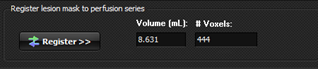
mask by pressing the <Register>
button on the Lesion segmentation menu:
This
step will save the mask for further analysis and also reformat the mask to
the perfusion data space. The
registered lesion mask can be toggled to be visible/invisible (including
visible in the perfusion series) by pressing the <Show/Hide lesion mask >
button the <Overlay> tab or by pressing <Ctrl+M > Once
a valid lesion mask has been registered and perfusion analysis has been
performed, perfusion metrics from selected parametric maps can be analysed
for voxels contained in selected lesion mask. Perfusion analysis is
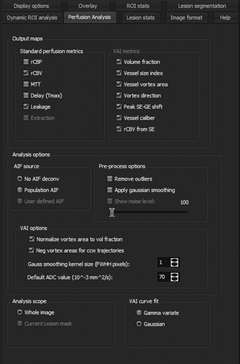
initiated via the <Perfusion
analysis> tab:
Figure 1: Perfusion analysis menu options. Here
you specify which perfusion/VAI maps should be generated and perfusion
specific options. Description of the various options and output map types are
covered in VAI-specific perfusion maps and Theoretical background - Vessel Architectural Imaging .
Note that, if a VOI mask has been defined, then perfusion analysis can be
limited to be performed in the selected VOI. This is generally not advisable since
certain processing steps such as leakage correction requires information
from the entire image volume. When
whole image volume is included in analysis, background voxels will be
excluded from the analysis – the threshold for voxels to exclude can be
visualized and modified by checking ‘show noise level’ and modify
level using the slider. Image stats can still be extracted from only
the lesion VOI once the perfusion maps have been generated. Pressing
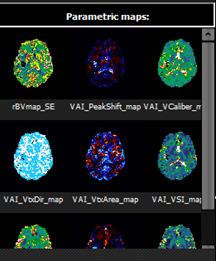
Figure 2: Addition of output parametric maps after completed VAI
analysis. Saving parametric maps: This
needs to be done via the main nordicICE interface. All maps visible in the
parametric maps list are also available in the main nordicICE workspace and can
be viewed by reducing/minimizing the size of the VAI module GUI. The
parametric maps can then be saved via the standard nordicICE image save
options. Generated parametric maps can be removed from the list by
right-clicking the thumbnail and selecting <Close>. This will also
close the corresponding parametric maps from the main nordicICE workspace (without
saving the data). The
output parametric maps can now be visualized as
overlays on the structural /functional data and statistics
can be extracted .
|
|