|
|
|
|
ROI
Buffer
The
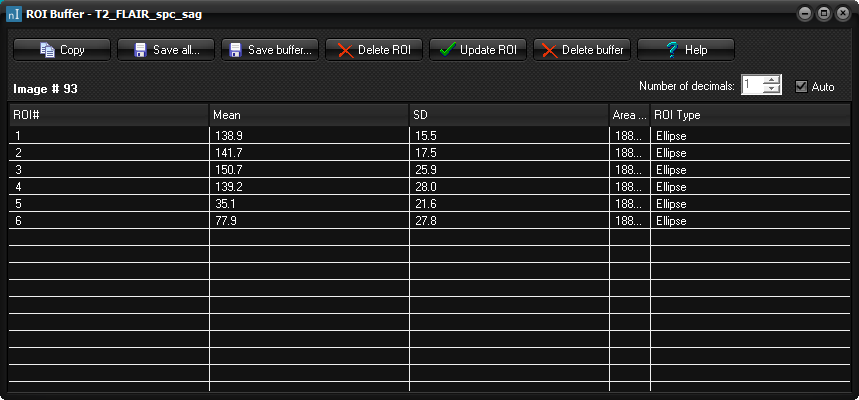
ROI buffer dialog box is displayed when you select Save ROI to
buffer on the ROI Statistics dialog box and when selecting ROI
-> View -> ROI Buffer from the Measure menu The
dialog is also displayed when selecting ROI -> ROI Buffer
-> ROI->buffer from the Measure menu.
: Copies all ROI s for the current slice to the clipboard (i.e. the ROI s visible in the list). : Saves all ROI s in the Buffer to a text file (.txt). This text
file can be loaded directly into Excel as a semi colon
delimited ASCII file. Note that nordicICE always uses ‘.’ as the decimal
delimiter. If your PC is set up with ‘ ,’ as the decimal delimiter
(see in
in Windows) you need to replace all ‘.’ with ‘,’ in the saved text file. You
may also have to tell Excel
to import the columns as individual numbers (-> option in Excel). : Saves the ROI buffer as a binary file ( : Delete the selected ROI in the ROI Buffer list. : When a ROI in the list is selected, this ROI will appear in the
image and can be modified. After modification, pressing
will store the changed ROI back to the Buffer. : Deletes all the entries in the ROI Buffer. Image #: The image number in the image sequence. ROI# Unique identifier for the ROI Mean The mean value of the pixel values within the ROI. SD The standard deviation of the pixel values within the ROI Area (mm^2) The area of the ROI if the image format contains information
about pixel size. If not, the area is the number of pixels. (I.e in mm, with a pixel dimension of 1x1 mm2) ROI type The type of the ROI. Related topics:
|
|