|
|
|
|
The
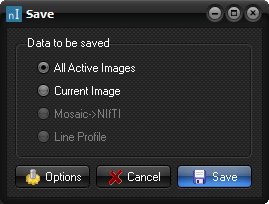
Save dialog
The Save dialog box is
displayed when you choose the Save ... command on the File
menu, and when you choose the Save... command on the Edit menu
Data to be saved All images: Saves all the images in the active image window. This option
allows 'batch conversion' of a series of images to a different file format (e.g. DICOM to JPEG). The saved image names will be the
name specified in the File name field, followed by a number indicating
the running number of a specific image in the saved series. The image format
of the saved image is set using the Save as type image format dropdown
menu in the File Save dialog. Current Image: Saves only the currently displayed image in the active image
window. Mosaic ->Nifti This option is specific for Siemens Mosaic Images which are in
Siemens DICOM format. Selecting this option converts the images from Siemens
Mosaic format to Nifti. This option will only be
enabled if the loaded image series is recognized as Siemens Mosaic images.
See “ Converting and Saving
Siemens Mosaic Images ” for more details. Line profile Saves the intensity values along the selected line profile for
the current image to an ASCII text file. Clicking on Options opens the Default Settings Image
Save dialog window (see “ Image Save Options ”).
Note the options selected here will affect all data to be saved from
nordicICE and not only the immediate data to be saved. Cancel Cancels the save operation. Save This opens a standard Windows Save dialog window. The save
operations are the same as for any Windows application. nordicICE
will always open on the same directory as the last save operation. To change
directory or open a new directory, follow the standard Windows procedures. Related topics:
|
|