DICOM
Reader
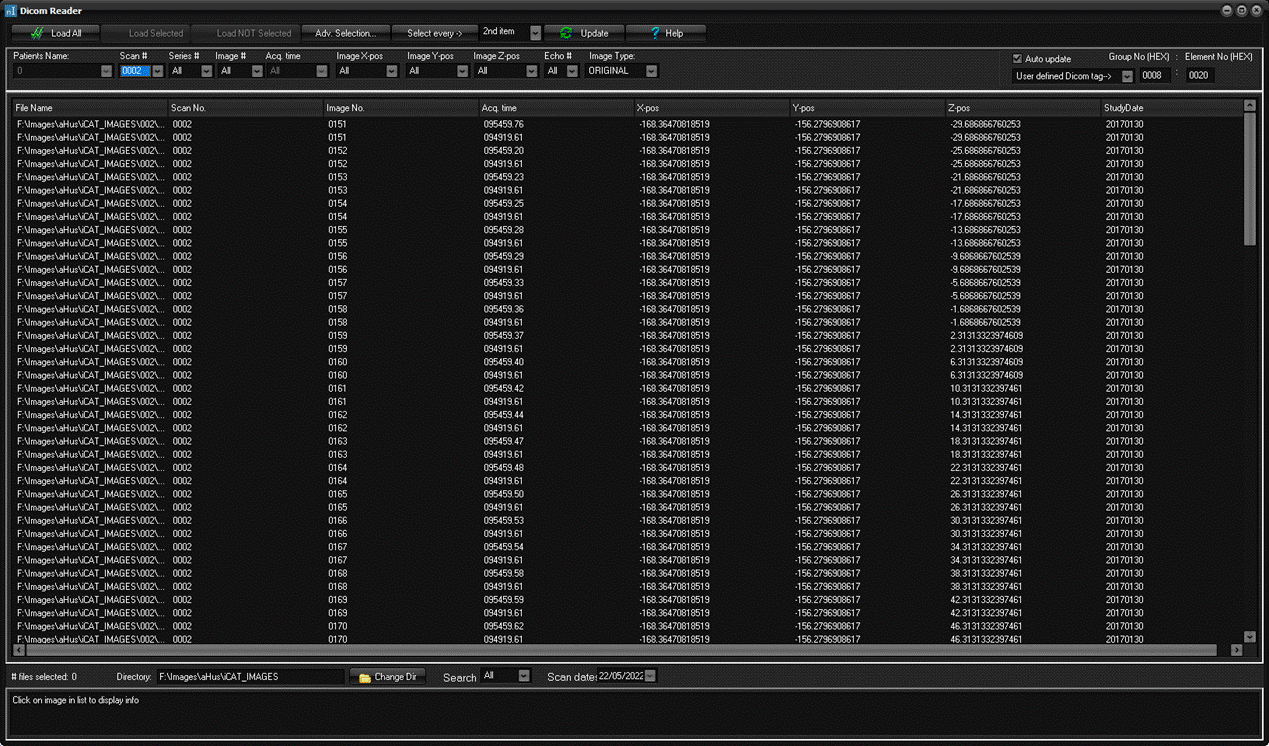
The
DICOM reader dialog scans the selected folder (including subfolder) for all
DICOM files, and lists the findings. The number of
findings can then be narrowed down by selections in the combo boxes, and sorted by clicking on the column headers.
Note:
The DICOM reader dialog box is displayed when you choose to open a
file using the Open DICOM Reader ... command on the File menu
Load All:
Loads all images listed into the nordicICE workspace.
Load Selected:
Loads the images selected into the nordicICE workspace. Hold
down Ctrl to mark more than one image or Shift to
mark a range of images.
Load NOT Selected:
Loads the images not selected into the nordicICE workspace.
Select every ->:
Enables selection of every n-th image (n=2-10)
in the list.
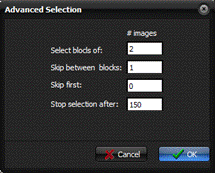
Adv. Selection:
Detailed specification of images to include in selection, as defined
in the following sub-dialog:
Update:
Rescans the folder and lists the findings.
Patients Name:
Select which patient to list, or select
All to list all patients. Only enabled if there is more than one patient in
the list.
Scan #:
Select what scans to list or select All to list all scans.
Only enabled if there is more than one scan in the list.
Series #:
Select what series to list or select All to list all series.
Only enabled if there is more than one series in the list.
Image #:
Select what images to list or select All to list
all images. Only enabled if there is more than one image in
the list.
Image time:
Select what image time to list or select All to list
all images. Only enabled if there is more than one imag time in the list.
Image X-pos:
Select what image x-positions to list or select All to list
all images. Only enabled if there is more than one x-position
in the list.
Image Y-pos:
Select what image y-positions to list or select All to list
all images. Only enabled if there is more than one y-position in
the list.
Image Z-pos:
Select what image z-positions to list or select All to list
all images. Only enabled if there is more than one z-position in
the list.
Echo #:
Select what echoes to list or select All to list
all images. Only enabled if there is more than one echo in the
list.
Image Type:
Select what image image types to list
or select All to list all images. Only enabled if there is more
than one image type in the list.
Directory:
The directory currently listed.
Change dir:
Select a different directory to list/search.
Search:
Select a time filter to apply.
Tips:
- The DICOM reader can be opened by pressing the DICOM
Reader button
 on
the Data management tools toolbar on
the Data management tools toolbar
Related topics:
DICOM
Reader

|