|
|
Activation tab
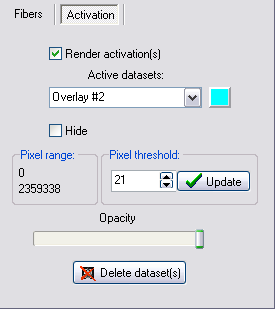
- Render activation(s):
- Render fMRI activation maps as 3D blobs. In order to
visualize
activations you must load the desired activation maps using the File menu option
Load
activation...
- Active datasets:
- List of the current loaded activation datasets.
- Active dataset color button:
- Displays the color used for rendering the selected
activation. Press this button to display the color dialog. You can
change the color used for displaying the selected activation by selecting a different color in the color dialog.
- Hide:
- Hide the rendered blobs corresponding to the current
selected dataset.
- Pixel range:
- The range of pixel-values present in the current
selected dataset.
- Pixel threshold:
- Select
the pixel threshold to be applied when rendering the activation. Only
pixels with values above this threshold will be rendered.
Click Update
to set the
threshold into effect.
- Opacity:
- Set the opacity (transparancy) of the rendered
activation.
-
Delete dataset(s):
-
Delete the current loaded activation datasets.
Related topics:
Tractography 3D viewer

|
|