Getting
starting with the VAI analysis
Data formats
The
VAI module supports both Dicom and Nifti image formats. For Dicom images , the
VAI perfusion series must be present as a single series containing the
dynamic data for both echoes. Both the perfusion, and structural series must
be multi-slice. Sorting of the 5D series is done automatically at VAI module
startup. The sorting is performed according to the information detected in
the Dicom header. For Nifti
images data must also be loaded as a single series containing
both echoes. If the GRE and SE series are stored as separate Nifti files,
they can readily be merged into a single series by selecting the two files in
Windows Explorer and dragging them into nordicICE. Note, that the GRE series
then needs to be the first file selected in the drag&drop procedure. For
Nifti data, the echo times and temporal resolution must be set prior to
processing. This is done in the <Image
format> tab.
Starting the VAI
module
The
module is started from the ‘Modules’ list in nordicICE main menu
like other standard nordicICE modules.
The
active datasets (the one selected) upon starting the VAI module should be a structural dataset –
i.e. the dataset used to define volume of interest (typically pathological
area lesion/edema etc). This should be a multi-slice structural dataset
covering the anatomical region included in the perfusion data. In addition, a
perfusion dataset should
be loaded into the nordicICE workspace prior to launching the VAI module.
This must be
a multi-slice dynamic dataset, and can be either a single echo DSC-MRI or a
double echo GRE-SE dataset.
Both
Dicom and Nifti data formats are supported.
When
launching the VAI module, the screen should look something like this:
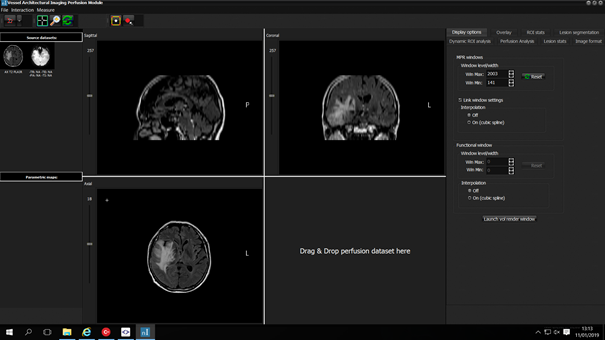
Figure 1: Main layout of VAI module GUI
As
shown in figure 1, the perfusion dataset, present in nordicICE workspace when
launching the module should appear in the ‘Source datasets’ panel
on the left-hand side of the MPR windows. This is then activated by drag&drop
into panel 4 as shown in figure 2.
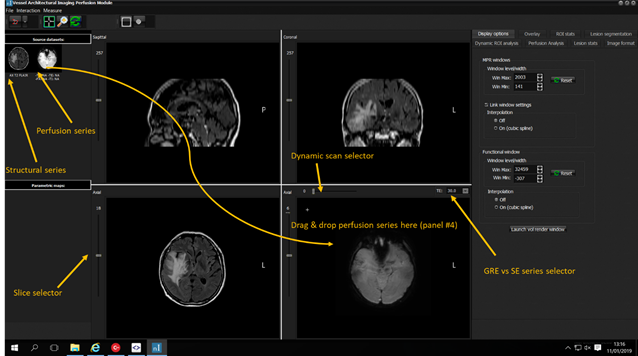
Figure 2: Selection of functional dataset by drag & drop
into panel 4.
Note
that multiple structural datasets can be present in the source dataset panel
and any active data can be replaced by drag & drop of available datasets
in the left source data panel. Currently, only one functional dataset can be
activated by drag & drop. If a new functional series needs to be
activated, the VAI module needs to be closed and re-opened and then drag in
the new functional dataset. Figure 2 also shows the slide bars used to select
slice / dynamic scan for the respective datasets. For the functional data, it
is also possible to select which echo time (TE) data should be visualized, if
double echo GRE/SE data was loaded.

|