|
|
Batch
Analysis - Coregistration
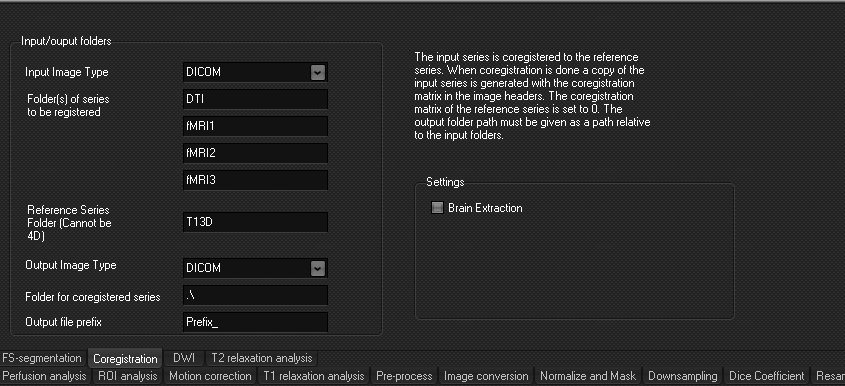
Coregistration
between series can be run as a batch process. Several series (dynamic or
structural) can be registered to one reference series, and this can be done
for multiple cases.
Note: Since the coregistration in batch is done without any user
interaction to confirm the results, always study the logfile after running
the batch coregistration, and check the results by overlaying the output data
on the reference series.
- Input image type can be either DICOM or nifti.
- Series to be registered: list all the folder names
for the series that is to be coregistered. 1-4
series can be coregistered for each case in
each run.
- Reference Series Folder is the folder name of the
series used as a reference, i.e. the series the input series is to be
registered to.
This series cannot be a 4D (dynamic) series.
- Output image type can be either DICOM or nifti. Note that if input image type is DICOM,
output datatype can be either DICOM of nifti,
but if image input type is nifti, the output
type can only be nifti.
- You can specify a folder where the new generated coregistered series is to be stored. If this is left
open, the coregistered series is saved in the
same folder as the original input series, but with a prefix.
- You can specify a prefix for the coregistered
folder.
- Brain Extraction can be used during coregistration.
- A log file is generated when running coregistration
in batch. The log file contains the transformation matrix,
goodness-of-fit values and any messages produced during the running of
coregistration in batch.
Note: For nifti input data, please check
that nifti-settings found in the Image Formats tab
in General Options in the main menu of nordicICE are set correctly.
Folder structure
setup:
The
reference series and all the input series to be registered must be in
separate folders. The base directory must be set at least two 'levels' above
the directory of the series to be registered.
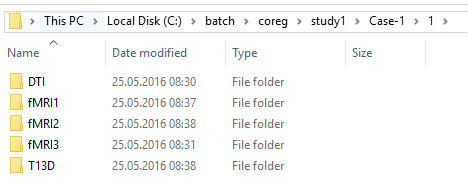
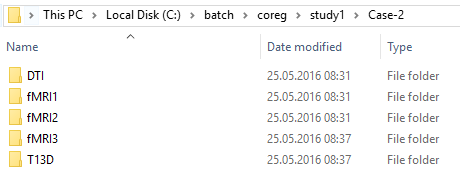
In
the example above, the base directory is 'Study1', and the series to be
registered are in Case-1\1, Case-2 and Case-3\3
Note
that the application will search in all subdirectories for matching folder
names.

|
|